Vantage Launches Enhanced Customizations for Dashboards
Resize widgets, add Free Text context, and edit display settings directly on the dashboard.
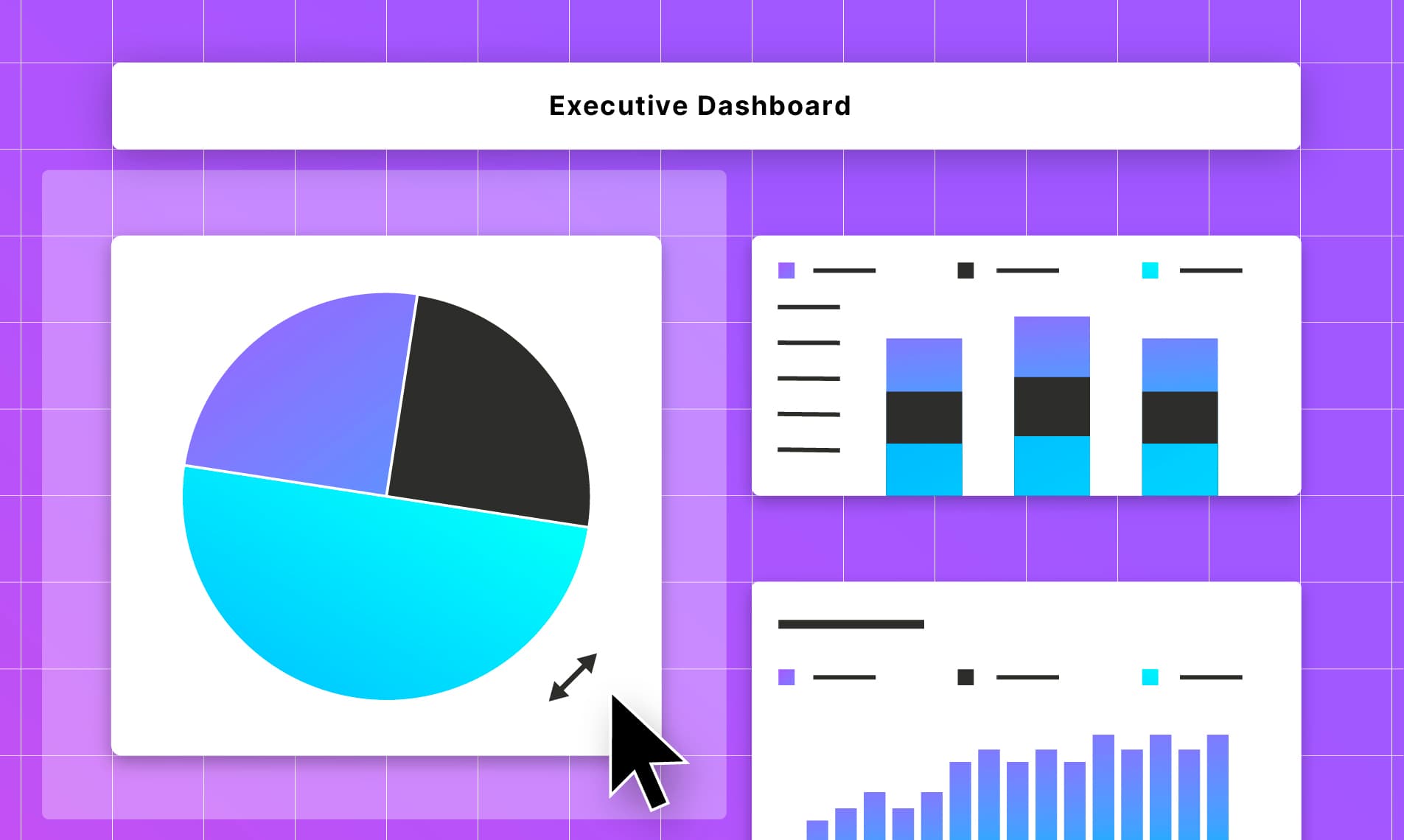

Today, Vantage is launching a brand new Dashboard experience, helping customers to further customize the contents and layout of the views of their cloud and AI costs in Vantage. Creating dashboards tailored to the story you are trying to tell with your cost and usage data in order to take action is now more achievable thanks to the introduction of text widgets, an improved editor, widget resizing, and custom layouts.
Resizing and customizing dashboard widgets and adding a new Free Text widget in the console.
Previously, a Vantage dashboard was a fixed grid of report widgets—all the same size, three per row—with no way to add section headings or blocks of text for context. Widgets could be toggled between charts and tables, but offered little individual customization, such as removing legends or changing the name of a widget on the dashboard. Adding a widget meant leaving the dashboard view and navigating to a management page, making it difficult to add widgets and shape an intuitive layout from a single place.
Now, with the updated Dashboard experience, users can customize their dashboard layouts to bring storytelling to their infrastructure spend, producing contextual overviews all within the dashboard itself. After clicking Customize Layout in the top-right corner of any dashboard, hovering over any widget reveals resize handles in the bottom corners, which can be dragged horizontally or vertically to resize the widget, which snaps to the dashboard grid. Widgets can be freely resized, as well as dragged to reorder the layout that best fits the dashboard. New widgets are now added right from the dashboard, through the Add Widget dropdown in the top right, where customers can select a Report or Free Text widget. Free Text widgets support text styling, sizing, links, code blocks, and numbered and bulleted lists. Widget settings can be edited by clicking the pencil Edit icon in the top right of any widget. New formatting options include showing or hiding chart legends, changing the widget title, and changing cost report tables between Daily and Cumulative views. These changes allow teams to create dashboards that best match the story they are looking to tell with their data, drawing attention to the most important attributes, adding context where needed, and leaving out unnecessary clutter.
The enhanced Dashboard experience is available today to all Vantage customers. To get started, head to the Dashboards page, open or create a dashboard, and click Customize Layout. For more detail, see the Dashboards documentation.
Frequently Asked Questions
1. What is being launched today?
Vantage is launching a redesigned dashboard experience that lets customers customize dashboard layout and content directly on the dashboard—most notably:
- Resizable report widgets (drag to resize and rearrange on a grid)
- A new “Add Widget” flow from within the dashboard (no longer a separate management page)
- New Free Text widgets to add headings/context (with rich formatting, like links, lists, code, etc.)
- An improved widget editor with additional display settings (e.g., show/hide legends, rename widgets, switch tables between Daily and Cumulative views)
2. Who is the customer?
This launch is for any Vantage customer who uses dashboards. It’s aimed at teams who rely on dashboards to quickly understand cloud cost trends and share a clear, self-serve narrative with others—particularly those sharing dashboards with finance partners, executives, or other stakeholders outside of core Vantage users.
3. How much does this cost?
There is no additional cost for these enhanced dashboard customizations.
4. How do I resize dashboard widgets?
From the Dashboards screen, open an existing dashboard (or create a new one) and click Customize Layout. From the edit view:
- Drag the resize handle from the bottom corners of any widget to change its size.
- Click and drag the center of any widget to change its position.
- Click Done customizing layout in the top right to save the configuration.
5. How do I add a Free Text widget?
Click Add Widget in the top-right corner of any dashboard, then select Free Text. In the Add Free Text Widget panel, enter and format your content, then click Add Widget. The widget is added to the end of the dashboard, where it can be resized and reordered like any other widget.
6. What text formatting and styling can I add to content in a Free Text widget?
You can apply the following formats and styles:
- Text Styling: bold, italic, underline, strikethrough
- Text Size: Heading 1, Heading 2, and paragraph (no size selected)
- Lists: numbered lists, bulleted lists
- Text Display: quote block, inline code, link
7. What is the minimum size for dashboard widgets?
Report widgets have a minimum size of 2×2 grid units, while Free Text widgets have a minimum size of 2×1 grid units. Widget contents automatically adapt to their size—for example, chart axis labels may be hidden and text may wrap as a widget is resized smaller.
8. How do I edit the contents of a Report Dashboard Widget?
Any dashboard widget can be edited by clicking the pencil icon in the top right of the widget. Editable components of a dashboard widget include:
- Widget Title
- Visualization Type (Chart, Table)
- Table View (Daily, Cumulative)
- Chart Legend (Shown, Hidden)
9. What permissions are required?
You must be an Editor or above in Vantage, in addition to having access to the dashboard itself, to edit a dashboard. Access is scoped to entire dashboards; you cannot individually scope access to edit specific widgets.
10. Is there still a limit on the number of widgets per dashboard?
Dashboards remain limited to 50 widgets at launch, inclusive of Free Text widgets.
11. Do the new widgets and layouts work in PDF exports and scheduled dashboards?
No. Free Text widgets are not included in PDF exports. Report widgets continue to use the existing one-widget-per-page export format for optimal rendering and accessible viewing on mobile devices.
12. Can I configure the widget sizes or Free Text widgets via the API or Terraform?
At launch, widget resizing and Free Text widgets can only be configured in the Vantage console.
13. Can I resize widgets on the Overview dashboard?
Not at this time. However, any dashboard you create can be set to be the default dashboard for a user or team.
Sign up for a free trial.
Get started with tracking your cloud costs.