Vantage Launches Scenario Model Forecasting
Model known future costs, credits, and trends as reusable Scenario Models, then combine them into custom forecasts on any Cost Report.
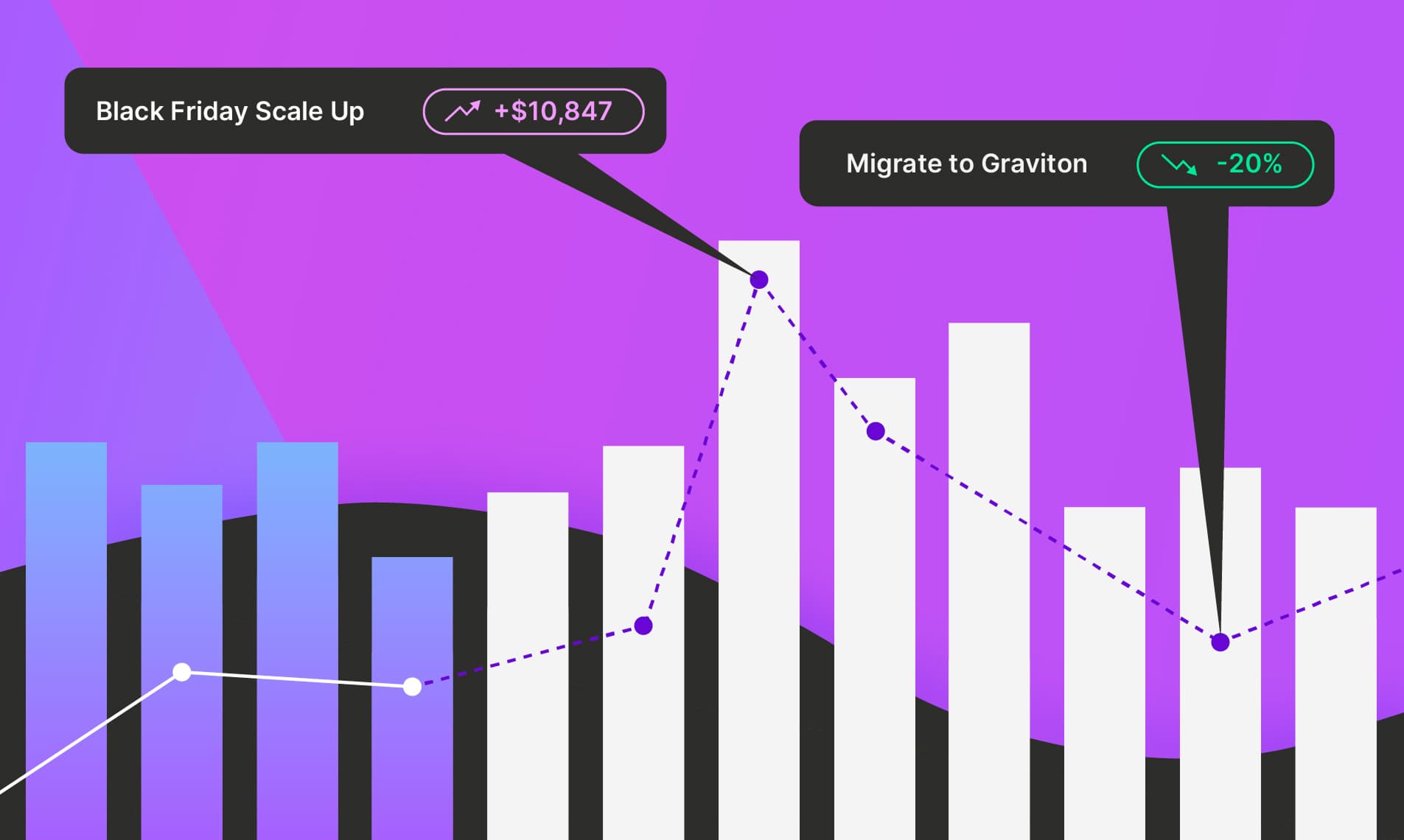

Today, Vantage is announcing Scenario Model Forecasting, a new capability that lets customers define Scenario Models that feed into Vantage’s machine-learning forecasting model. When applied to a Cost Report, these scenario inputs directly change the projected forecast, so teams can model the expected impact of upcoming initiatives, one-time events, credits, or infrastructure changes on their future spend.
Vantage generates forecasts for each Cost Report to predict future cloud spending across all your connected cloud providers. By default, these forecasts use historical cost trends to project forward. While this is helpful for out-of-the-box projections, it does not account for future initiatives, such as optimization projects, large one-time credits or purchases, or known growth that is not correlated with historical usage. Vantage previously allowed customers to influence forecasts indirectly by incorporating an associated Business Metric through Dynamic Forecasting. However, many future scenarios may occur independently of any Business Metric.
Now, customers can add Scenario Models alongside forecasted Business Metrics to create precise Custom Forecasts within Vantage. Scenarios can represent optimizations (e.g., migrating EC2 instances to Graviton), bespoke events that may influence your business (e.g., increasing costs by 150% during Black Friday/Cyber Monday), or other infrastructure changes (e.g., assuming Cursor costs will increase by 250% because of developer adoption). You create a Scenario Model in the new “Scenario Models” section under Financial Planning. Each model consists of:
- Name (e.g., “migrate to Graviton”)
- Cost Adjustment Setting (either a dollar value or percentage)
- Priority (an integer that determines the order in which the rule is evaluated)
- Per-Service Filter to select the costs to which the adjustment applies
- Any number of future Forecast Periods, each of which is a time range in months and a value (e.g., -20% in Q4 of this year, when we make the migration to Graviton)
Once these Scenario Models are defined, you can create a Custom Forecast from the Forecasts tab of any Cost Report by clicking the Default Forecast dropdown and selecting “Create new forecast.” You can add any number of Scenario Models and optionally include a forecasted Business Metric to create a Custom Forecast that best models your expected growth. You can also create multiple Custom Forecasts, compare them within the Forecasts tab, and designate which one is displayed by default in the Cost Report.
Scenario Modeling is available to all Vantage Enterprise customers. To get started, navigate to the Scenario Models section under Financial Planning. For more information, see our Forecasting documentation.
Frequently Asked Questions
1. What is being launched today?
Vantage is announcing Scenario Model Forecasting, a new capability that lets teams shape forecasts by defining their own Scenario Models with custom parameters, feeding them into Vantage’s machine-learning forecasting engine, and viewing the resulting projections directly in Cost Reports.
2. Who is the customer?
This feature is designed for Vantage customers on Enterprise pricing plans.
3. How much does this cost?
There is no additional cost for Scenario Model Forecasting, and any Vantage customer on an Enterprise plan can use this feature.
4. How do I create a Scenario Model?
To create a Scenario Model, navigate to the “Scenario Models” tab within Financial Planning. After clicking “New Scenario Model,” you will be prompted to enter the following:
- Name - the name that you would like to use to reference the Scenario Model
- Cost Adjustment Type - whether this model uses dollar or percentage adjustments
- Priority - the integer that determines the order in which a model is evaluated when multiple Scenario Models are applied to the same forecast
- Filters - provider and service filters to apply forecast adjustments to only a subset of costs
- Forecast Periods - the calendar months this model should be applied to. You can enter both start dates and end dates for each Forecast Period, or leave them blank to be applied indefinitely before or after the specified date.
5. Can I bulk upload Scenario Models?
Yes, you can bulk upload Scenario Models using a CSV through the “Import” CTA in the top-right corner of the Scenario Models page. Required columns include a title, amount type (percent or dollar), and at least one period column. Each Scenario Model should be represented as its own row. See the following format example:
6. How do I create a Custom Forecast?
When viewing the Forecasts tab of a Cost Report, users can now select “Create new forecast” from the “Default Forecast” dropdown. This prompts the user to enter a name for their Custom Forecast and select the Scenario Models and Business Metrics they would like incorporated into it. Once saved, Vantage processes the inputs along with historical spend to create a new forecast. Users can view and compare all their Custom Forecasts in the Forecasts tab, then choose which forecast to display by default on the Cost Report overview tab.
7. How do I edit or delete a Custom Forecast?
When viewing the Forecasts tab of a Cost Report, you will see edit and delete icons next to the forecast name. You can edit the name of your Custom Forecast, change the Scenario Models applied to it, or delete the forecast entirely. If you update the applied Scenario Models, the forecast will be reprocessed.
8. Are Custom Forecasts returned by the Cost Report Forecasts API?
Yes, Custom Forecasts are represented in the response from the /cost_reports/{cost_report_token}/forecasted_costs API. By default, the endpoint returns whichever forecast is set as the default for the report.
9. Can I retrieve my Custom Forecasts from the Vantage FinOps Agent and Vantage MCP?
Yes, both the FinOps Agent and Vantage MCP have the ability to access and analyze your Custom Forecasts.
10. What permissions do I need in order to create or edit Scenario Models and Custom Forecasts?
You must be an Editor or Owner to create or edit Scenario Models and Custom Forecasts.
11. How do I know if my Custom Forecast is being processed and when it is done?
When viewing a Cost Report, you will see a “Generating Forecast” indicator in the top-right corner while your forecast is being generated. Once processing is complete, the indicator disappears and your forecast is displayed in both the Forecasts tab and the Overview tab of the Cost Report if it is set as the default forecast.
12. What happens if a forecast configuration expires or is in the past?
Configurations that fall entirely in the past are automatically excluded from active forecast calculations and marked as “Expired” in the UI if currently applied to a Scenario Model. You cannot apply expired Scenario Models to a new Custom Forecast.
13. Can I create multiple Custom Forecasts on a Cost Report?
Yes. Users can create as many Custom Forecasts as they like per Cost Report to model different scenarios, such as growth, cost optimization, or vendor pricing changes.
14. Can I apply Scenario Models to multiple Cost Reports?
Yes, there is no limit to the number of Cost Reports to which you can apply a Scenario Model. When viewing the “Scenario Model” page in Financial Planning, you can see the Cost Report and Custom Forecast to which the Scenario Model has been applied.
15. Are forecasts shared across Cost Reports?
No, forecasts are scoped to a Cost Report and its underlying costs.
16. What is the granularity of Custom Forecasts?
When viewing a Cost Report, a Custom Forecast matches the granularity of the Cost Report, such as daily, weekly, or monthly. Tabular views within the Forecasts tab are available at monthly granularity.
17. Are creations, edits, and deletions of Scenario Models and Custom Forecasts logged in the Audit Log?
Yes, you can view all events for Scenario Models and Custom Forecasts in the Audit Log.
Sign up for a free trial.
Get started with tracking your cloud costs.