How to Track Cursor Costs Across Your Engineering Team
Cursor adoption scales fast. Visibility into what's driving the bill usually doesn't. Here's how to understand what you're spending and how to get granular cost tracking set up.

Your team adopted Cursor six months ago. A handful of developers tried it first, then word spread, and now it's running on every laptop in engineering. The tool is great - nobody's arguing about that. But when finance asks what you're spending on it and why, you're probably stuck staring at an invoice with a single number and no real way to explain what's behind it.
With AWS or GCP, you've got Cost Explorer, tagging, resource-level breakdowns - a whole ecosystem for understanding spend. With Cursor, you get a monthly total and maybe a vague sense that usage went up. That gap between "we're spending money" and "we understand why" is where things get expensive.
Cursor Pricing Recap
Cursor's pricing has two components: a per-seat subscription and usage-based token charges.
The subscription piece is simple. Team plans run $40/developer/month, Enterprise is custom. Across a 50-person engineering team, that's $2,000/month before anyone makes a single request.
The usage-based piece is where things get variable. Every request to Cursor consumes tokens - input tokens (the code and context you send) and output tokens (what the model generates back). Each plan includes a pool of usage, and once you exceed it, you're paying per token at rates that depend on which model handles the request. Cursor's model docs have the full breakdown, but the range is wide: Composer 2 Standard runs $0.50 per million input tokens while Claude Opus 4.6 costs $5.00 - a 10x gap. Features like max mode, which uses the maximum context window for all models, increase token consumption per request on top of that.
The subscription costs are predictable. The usage-based costs usually aren't - and they can easily match or exceed the subscription depending on how aggressively your team uses the tool.
What Drives Cursor Token Costs
The question most engineering leaders have isn't "how much are we spending on Cursor?" They already know the number. It's "what's behind the number?" A few dimensions make all the difference.
Model mix is the highest-leverage variable. If a large share of your tokens are going to Claude Opus when the underlying task is code completion, there's a mismatch between what you're paying for and what you actually need. Per-token costs range from under a dollar to $25+ per million depending on the model (see the full list on the Vantage model pricing index), so even small shifts in model distribution show up on the bill fast.
Token type tells you whether input or output is driving spend. Disproportionately high input costs usually point to large context windows or max mode - you're paying to send a lot of code as context on every request. High output costs suggest the models are generating long responses, which might mean your team is using Cursor for bigger generation tasks rather than quick edits.
Per-developer patterns aren't about creating a leaderboard of who spends the most. They're about spotting outliers and understanding why. If one team's usage is 5x another's, that's a signal. Maybe they've found a workflow that's genuinely productive and worth spreading. Maybe they're hitting an expensive model that isn't necessary for their use case. Either way, you want to know.
Usage category tells you how your subscription tier lines up with actual consumption. Cursor breaks charges into requests and tokens, and further into what's included in your plan vs. what's usage-based overage. If the majority of your spend is in overages, your plan tier might be undersized - or your team's usage patterns have shifted since you signed up. Tracking the split between included and usage-based spend over time shows you whether you're getting value from your subscription or just paying a base fee and then paying again on top.
Once you can see these dimensions, the conversation shifts from "Cursor costs X" to "here's why, and here's what we'd adjust."
Cursor's Built-In Cost Tracking and Its Limits
Cursor's dashboard gives Enterprise teams a high-level view of usage - you can see aggregate token counts and spend. The Admin API goes a step further, providing structured data broken down by model, token type, and developer. If you're comfortable working with API data, you can pull this into a spreadsheet or internal dashboard to get a basic picture.
But there are real limitations. The Admin API gives you raw data, not a cost management tool. There's no built-in trending to see how spend is changing month over month. No alerting if usage spikes unexpectedly. No way to group developers by team or department - you get individual email addresses, and rolling those up into something meaningful is on you. And there's no way to see Cursor costs alongside your other infrastructure spend, which matters if you're also paying for direct Anthropic or OpenAI API usage, AWS, or other cloud providers.
For a small team, pulling from the Admin API and eyeballing a spreadsheet might be enough. For an org with dozens or hundreds of developers across multiple teams, you need something that does the aggregation, grouping, and alerting for you.
How to View Cursor Costs by Model and Developer
Vantage supports Cursor natively and breaks down spend across all the dimensions above - by model, token type, developer, usage category, and more. If you're not already connected, the setup takes about five minutes.
Group by Model to See Your Cost Mix
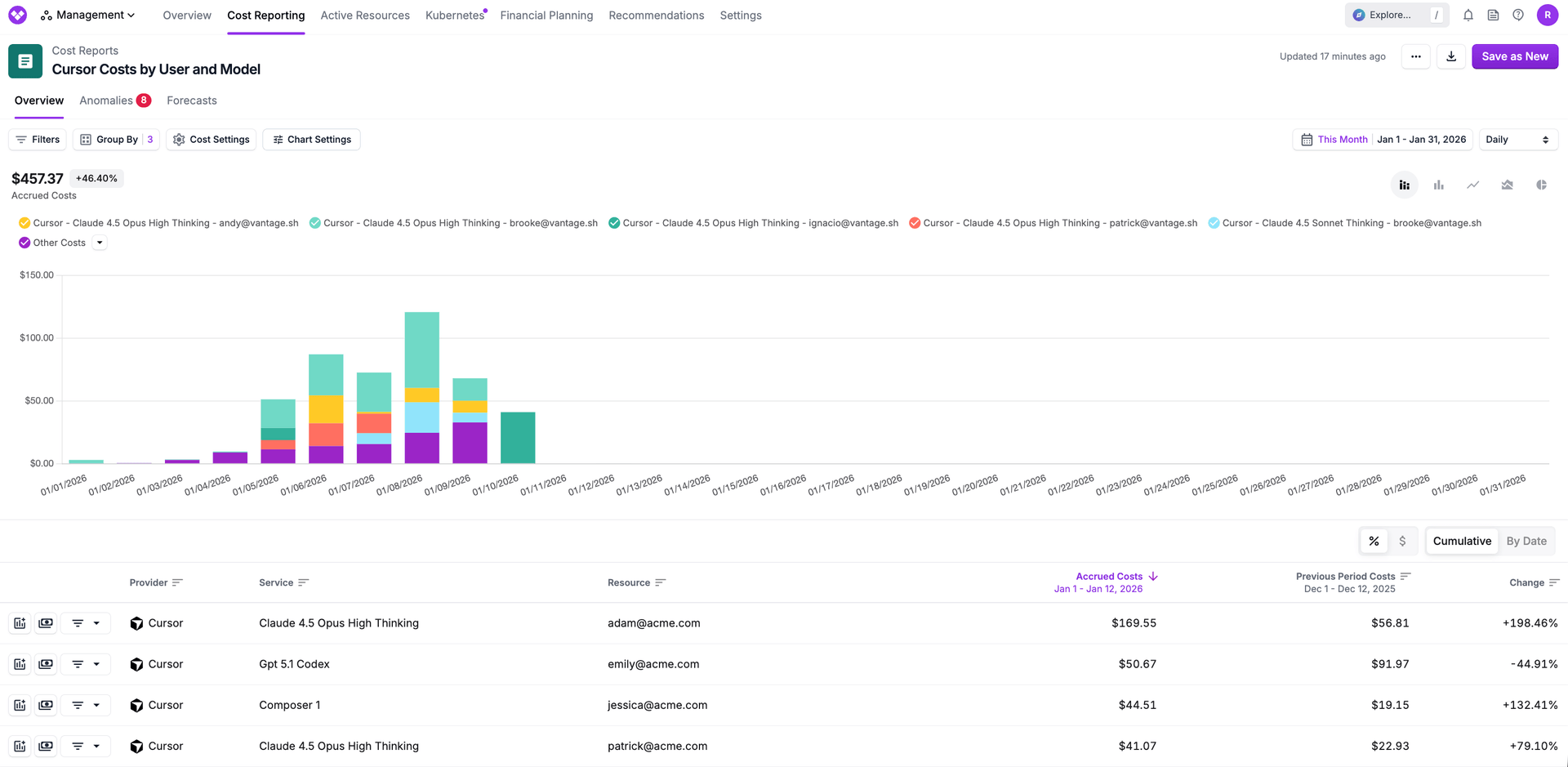
In a Cursor Cost Report, group by Service to see spend broken down by model - Composer 2 Standard, Claude 4.5 Opus High Thinking, GPT 5.1 Codex, and so on. This is the fastest way to understand where money is going. If a big chunk of spend is on expensive reasoning models and your team's primary use case is code completion, that's a conversation worth having with engineering leads - not to restrict usage, but to make sure the model selection matches the task.
Track Developer-Level Spend
Group by Resource to see costs by individual developer email. From there, you can create Virtual Tags to roll developers up by team, department, or project. Tag a group of developer emails as "Platform Engineering" or "Frontend," and you've got team-level spend without any manual aggregation. If you're doing any kind of chargeback or showback for engineering spend, this is how Cursor fits in.
Monitor Max Mode Usage
Filter by the cursor:max_mode tag to see which costs came from requests using maximum context windows. Max mode is a legitimate feature for working with large codebases, but if it's enabled org-wide by default, the token consumption increase might not be justified for every use case.
View Cursor Alongside Other AI Spend
If your team also uses the Anthropic or OpenAI APIs directly, Vantage shows all of it in one place. Cursor costs in isolation tell one story. Cursor costs next to your direct API spend and your cloud infrastructure tell a much more complete one.
How to Connect Cursor to Vantage
The integration takes about five minutes. You'll need a Cursor Enterprise plan (the Admin API isn't available on lower tiers) and Team Administrator access in Cursor to generate an API key. On the Vantage side, you can create a free account if you don't have one.
Step 1: Generate an Admin API key in Cursor.
Log in to your Cursor dashboard and click Settings in the left nav. Scroll to the Advanced section and click New API Key. Give it a name - something like "Vantage Integration" - and click Save. Copy the generated key. Note that Cursor's Admin API key includes permissions beyond what Vantage uses - Vantage only reads cost and usage data and never stores prompt or response content - so using a dedicated key and rotating it per your security policy is the way to go.
Step 2: Add the key in Vantage.
In the Vantage console, go to Settings > Integrations > Cursor. Click Add API Key, paste the key you just copied, and give the account a name. This name shows up in your cost report filters, so pick something descriptive if you're connecting multiple Cursor orgs. Click Connect Account.
Step 3: Wait for the import.
The status will show "Importing" while Vantage pulls in your historical data up to your configured retention period. Once it flips to "Stable," Cursor costs appear in your All Resources Cost Report alongside everything else.
No agents to install, no Terraform to write, no webhook to configure. One API key and you're done.
Wrapping Up
Cursor's trajectory from "a few developers tried it" to "the whole org uses it" happens fast - usually months, not years. The spend follows the same curve. Cursor's own tooling gives you the raw data to start understanding what's behind the bill, but once you're past the point where a spreadsheet cuts it, you need something that handles the aggregation, team allocation, and cross-provider visibility for you.
The Cursor integration in Vantage takes about five minutes to set up and starts surfacing data the same day. If Cursor has become a real line item for your team, that's a pretty good return on five minutes.
Sign up for a free trial.
Get started with tracking your cloud costs.